Text templates
Templates let you save frequently used text and retrieve it later for the report’s Introduction and Conclusions sections. Both fields share the same manager, so a template saved from either section can also be used in the other.
Before applying a template, make sure its content matches the operating mode, scope, results, and conditions of the current assessment. Retrieved text can be modified in the Introduction and conclusions editor.
Save a template
First draft the content in the Introduction or Conclusions field. Then select Save text as template. The save form appears.
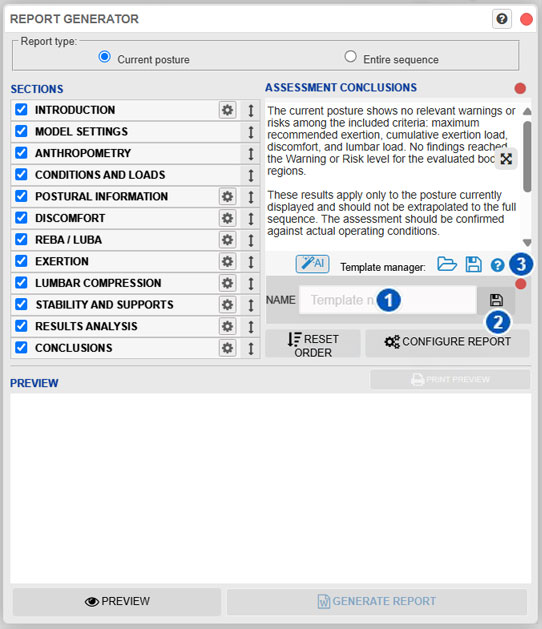
| No. | Control | Function |
|---|---|---|
| 1 | Template name | Assigns a name that makes the text easy to identify and retrieve. |
| 2 | Save template | Saves the current text under the specified name. |
| 3 | Close | Hides the form without saving a template. |
The name can contain letters, numbers, spaces, hyphens, and underscores, and cannot exceed 20 characters. It must differ from the names of existing templates. The text to be saved cannot be empty and is limited to 15,000 characters.
Saving your own templates requires an active user session with permission to use this feature. Closing the form does not delete or change the text drafted for the report.
Open the template manager
Select Open template manager in the Introduction or Conclusions section. The Your templates dialog displays the available templates and lets you review their content before applying one.

| No. | Control | Function |
|---|---|---|
| 1 | Template list | Displays the available templates and lets you select the one to review or use. |
| 2 | Preview | Displays the full content of the selected template. |
| 3 | Delete | Deletes the selected user template after requesting confirmation. |
| 4 | Cancel | Closes the manager without applying a template. |
| 5 | Use template | Transfers the selected template’s content to the Introduction or Conclusions field from which the manager was opened. |
Select a template in the list to display its content in the preview. You can also move the selection with the keyboard. Sample templates can be viewed and used but not deleted; Delete is only available for your own templates.
Apply a template
Select the template, review its content, and select Use template. The text is copied to the field from which the manager was opened and can be edited before the report is generated.
The template replaces the field’s existing content; it is not appended. If the Introduction or Conclusions already contains different text, Ergoniza Intelligent asks for confirmation before replacing it. Select Cancel to keep the current content.
Delete one of your templates
Select a template that you created and select Delete. The application asks for confirmation before deleting it. This action removes the saved template but does not change text already included in other reports.
Use descriptive names that indicate each template’s purpose or scope. Because the manager is shared by Introduction and Conclusions, the name can also identify the type of text for which the template is intended.
Update the preview
Saving text as a template does not change the report content. However, applying a template or subsequently editing the Introduction or Conclusions makes any existing preview out of date. Select Update preview and check the content before printing or generating the PDF or Word file.