Intelligent options
The Intelligent options menu groups settings related to the automatic capture of postures and movements using artificial intelligence. These parameters change detection, tracking, smoothing of captured postures, and certain post-processing adjustments related to contact between the model and the floor.
These controls primarily affect capture with Fast AI, which is processed locally on the user’s computer. Do not interpret them as general parameters for every capture system. Accurate AI, which runs on the server, may use different internal procedures and settings.
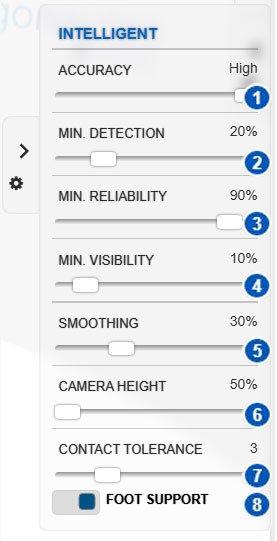
| No. | Control | Function |
|---|---|---|
| 1 | Accuracy | Adjusts the accuracy used by Fast AI for posture detection. |
| 2 | Min. detection | Defines the minimum confidence required to accept the initial detection of a person in an image or video. |
| 3 | Min. reliability | Defines the minimum confidence required to maintain tracking of the detected posture. |
| 4 | Min. visibility | Sets the minimum visibility required to accept detected body landmarks. |
| 5 | Smoothing | Increases or decreases the smoothing applied to captured postures. |
| 6 | Camera height | Adjusts the reference height of the camera used when interpreting the posture. |
| 7 | Contact tolerance | Defines the tolerance used to interpret contact between the feet and the floor. |
| 8 | Foot support | Enables or disables automatic adjustment of foot support after posture capture. |
Scope of these settings
The parameters in the Intelligent menu primarily control local automatic capture. They are therefore especially relevant when capturing from an image or video with Fast AI.
When using server-based Accurate AI, some of these parameters may have a different effect or may not participate directly in processing. In that case, treat these controls as local-environment and posture post-processing settings, not as a complete configuration of the remote process.
Accuracy
The Accuracy control, numbered 1, adjusts the accuracy used by Fast AI for posture detection.
A higher accuracy setting can improve detection quality, especially in complex scenes, unusual postures, or captures that require greater detail. However, it can also increase processing time and reduce smoothness when working with video.
A lower accuracy setting can accelerate capture but may produce less detailed or less stable results. It can be useful when rapid capture is required or the computer has limited processing capacity.
As a general rule, use high settings when accuracy is the priority and lower settings only when you need to reduce processing time.
Min. detection
The Min. detection control, numbered 2, sets the minimum confidence required to accept the initial detection of a person in an image or video.
A higher value makes the system more selective. It accepts a detection only when the person is clearly visible and the system has sufficient confidence in body identification. This can reduce errors, but it can also prevent some postures from being detected when image quality is poor, lighting is inadequate, occlusions are present, or the person is only partially visible.
A lower value makes it easier for the system to accept detections under less favorable conditions, but it increases the risk of accepting inaccurate detections.
If Fast AI does not detect the person correctly, you may need to reduce this value. If incorrect postures or unwanted elements are detected, consider increasing it.
Min. reliability
The Min. reliability control, numbered 3, defines the minimum confidence required to maintain tracking of the detected posture.
This parameter is particularly relevant to video, where the system must track how the posture changes over time. A high value requires more reliable tracking, which can improve the quality of accepted data but can also cause the system to discard more frames if the posture becomes occluded, changes abruptly, or loses clarity.
A lower value maintains tracking under more difficult conditions, but it may increase the likelihood of accepting less reliable positions.
If tracking is frequently interrupted, try reducing this value slightly. If the system maintains clearly incorrect postures during capture, consider increasing it.
Min. visibility
The Min. visibility control, numbered 4, sets the minimum visibility required to accept detected body landmarks.
When a body part is obscured by an object, another body part, or an unfavorable orientation relative to the camera, the visibility of its landmarks decreases. This parameter helps determine when a detected landmark is sufficiently visible to be used.
A high value requires body landmarks to be clearly visible. This can improve the reliability of the accepted posture but may discard information in tasks with partial occlusions.
A low value allows less visible landmarks to be used, although the estimated posture is then more likely to require review or manual correction.
After a capture with limited visibility, always review the resulting posture before running an analysis.
Smoothing
The Smoothing control, numbered 5, increases or decreases the smoothing applied to captured postures.
Smoothing helps reduce abrupt variations or small jumps between detected postures, especially when working with video. It can make model movement more stable and visually continuous.
However, excessive smoothing can attenuate rapid movements or delay the model’s response relative to the observed movement. Adjust it according to the type of task.
For slow movements or sustained postures, you can use more smoothing. For rapid movements or abrupt posture changes, avoid excessive values so that temporal detail is preserved.
Camera height
The Camera height control, numbered 6, adjusts the reference height of the camera used when interpreting the posture.
This parameter adapts the capture to the position from which the image or video was recorded. Camera height can affect the observed perspective and therefore the interpretation of the posture.
If the camera was positioned too high or too low, estimates of some angles or supports may be less accurate. This setting can then provide a closer approximation to the actual scene configuration.
As a general recommendation for ergonomic capture, position the camera approximately at trunk height or slightly above the waist of the person being assessed, and avoid steep viewing angles.
Contact tolerance
The Contact tolerance control, numbered 7, defines the tolerance used to interpret contact between the feet and the floor.
This setting affects how the system determines whether the feet are sufficiently close to the floor plane. A larger tolerance accepts small height differences without interpreting that the foot has lost contact. A smaller tolerance requires a closer match between the foot and the support plane.
This parameter can be relevant when capturing standing postures, asymmetrical support, lifting, displacement, or movements in which the position of the feet relative to the floor is important.
If the model appears to lose support unrealistically, review this parameter together with Foot support.
Foot support
The Foot support control, numbered 8, enables or disables automatic adjustment of foot support after posture capture.
When this option is enabled, the system attempts to adapt the captured posture so that the model maintains more consistent support on the floor. This can correct small deviations caused by automatic detection, especially in videos or images where perspective makes the vertical position of the feet difficult to estimate accurately.
This option can produce more stable and visually consistent postures. However, review the final result because automatic adjustment may not be appropriate in every situation, such as when the person has partial support, is standing on a step or raised surface, or is in a posture where both feet should not be supported.
Recommendations for use
Change the Intelligent settings when automatic Fast AI capture does not produce sufficiently stable or accurate results.
If the person is not detected, first review image quality, lighting, framing, and visibility of the complete body. Then adjust Min. detection if necessary.
If the posture is detected but video tracking is unstable, review Min. reliability and Smoothing.
If some limbs are incorrectly positioned or detected with low confidence, review Min. visibility and check the image for occlusions.
If the model does not maintain correct floor contact, review Contact tolerance and Foot support.
In every case, treat automatic capture as an aid for entering postures or movements, not as a final result that requires no review. Before running an analysis, visually confirm that the model correctly represents the posture or activity being assessed.