Define loads and moments at the hands
Task loads and moments tell the system which forces act on the person’s hands during the posture or activity being assessed. These data are required for analyses that depend on exertion, external load, or handling conditions to provide consistent results.
Before reviewing the results, always verify that the entered load represents the actual situation being analyzed. A correct posture with an incorrect load can produce an assessment that is not representative of the task.
Open the load or force at the hands dialog
To enter a sustained load or a force applied with the hands, open Load or force at the hands from the corresponding interface control.
The dialog supports two ways of defining the load:
- load distributed between both hands;
- independent loads for the left and right hands.
Use the first option when the load is shared similarly by both hands. Use the second when each hand supports a different load or applies a force in a different direction.
Load distributed between both hands
When Distributed between both hands is enabled, the system interprets the total load as being shared equally between the two hands.
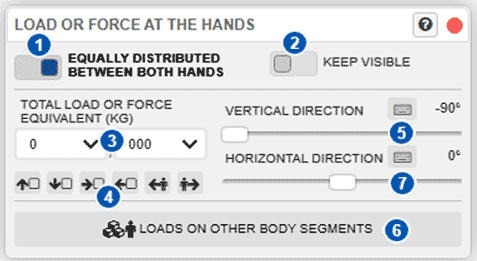
| No. | Element |
|---|---|
| 1 | Load distribution between both hands |
| 2 | Keep loads visible after closing the window |
| 3 | Total weight or force applied between both hands |
| 4 | Quick load-direction buttons |
| 5 | Vertical direction of the applied load or force |
| 6 | Horizontal direction of the applied load or force |
| 7 | Open load entry for other body segments |
To enter a load distributed between both hands:
- Enable Distributed between both hands.
- Enter the total load or force in kilograms.
- Select a preset load direction if one of the available buttons matches the task.
- If necessary, adjust the vertical and horizontal directions manually.
- Verify that the load shown on the model is consistent with the task being assessed.
- If the load must be defined on another body segment, use the corresponding button to open the body-load dialog.
The vertical direction determines whether the load acts upward, downward, or at an intermediate angle. The horizontal direction adjusts the force orientation relative to the model.
Independent loads for each hand
When Distributed between both hands is disabled, the dialog lets you enter different loads or forces for the left and right hands.
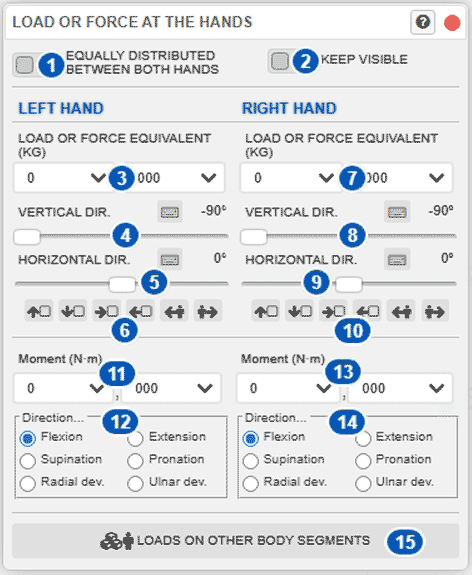
| No. | Element |
|---|---|
| 1 | Turn load distribution between both hands on or off |
| 2 | Keep loads visible after closing the window |
| 3 | Weight or force applied to the left hand |
| 4 | Vertical direction of the load applied to the left hand |
| 5 | Horizontal direction of the load applied to the left hand |
| 6 | Quick load-direction buttons for the left hand |
| 7 | Weight or force applied to the right hand |
| 8 | Vertical direction of the load applied to the right hand |
| 9 | Horizontal direction of the load applied to the right hand |
| 10 | Quick load-direction buttons for the right hand |
| 11 | Moment applied to the left hand |
| 12 | Direction of the moment applied to the left hand |
| 13 | Moment applied to the right hand |
| 14 | Direction of the moment applied to the right hand |
| 15 | Open load entry for other body segments |
Use this mode when:
- one hand supports more load than the other;
- each hand applies a force in a different direction;
- the task involves an asymmetric action;
- different moments are applied at each hand.
To enter independent loads:
- Disable Distributed between both hands.
- Enter the load or force for the left hand.
- Adjust the vertical and horizontal directions of the left-hand load.
- If appropriate, select a preset direction for the left hand.
- Enter the load or force for the right hand.
- Adjust the vertical and horizontal directions of the right-hand load.
- If appropriate, select a preset direction for the right hand.
- Visually verify the orientation of the loads on the model.
- If the task includes moments applied at the hands, also enter their magnitude and direction.
Keep loads visible
Keep visible retains the graphical representation of the loads in the scene. Enable it when you need to check force orientation while changing the posture or reviewing the results.
If the displayed loads make the posture difficult to inspect, temporarily disable this option.
Check before continuing
Before closing the dialog or running an analysis, verify:
- that the load value is correct;
- that the appropriate mode—distributed or independent—is selected;
- that the force direction matches the real action;
- that the load is applied to the correct hand or hands;
- that no residual values remain from a previous assessment.
Common problems
If the load is not displayed as expected, first check whether Keep visible is enabled.
If the load direction does not match the task, use the vertical and horizontal direction controls instead of the preset buttons.
If a load applied to one hand cannot be changed, make sure Distributed between both hands is not enabled.
If the results change substantially when the load changes, verify that the entered value represents the task’s actual load or force.