Loads on body segments
The Loads on body segments dialog lets you enter loads or forces applied to specific model segments or joints. Open it with Loads on other body segments in the Load or force at the hands dialog.
This feature represents situations in which an external load acts not only at the hands but also on other body regions. For example, it can represent loads supported on the head, shoulder, torso, pelvis, limbs, or other body segments.
Loads entered here can affect biomechanical analyses because they change the external forces considered by the system. Define them only when they represent a real condition of the task being assessed.
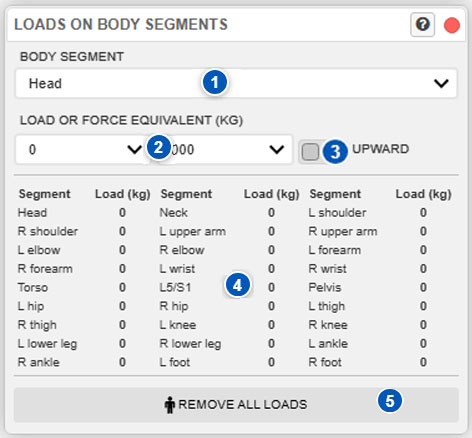
| No. | Control | Function |
|---|---|---|
| 1 | Body segment | Selects the segment or joint to which the load or force will be applied. |
| 2 | Load or force | Sets the magnitude of the applied load or force in kilograms. |
| 3 | Load direction | Specifies whether the load acts in the direction of gravity or in the opposite direction. |
| 4 | Applied-load table | Displays the loads assigned to different segments or joints at the displayed time point. |
| 5 | Remove all loads | Removes all loads entered at the current time point or in the selected postures. |
Open the dialog
Open Loads on body segments from Load or force at the hands, which contains a button for entering loads applied to other body regions.
Use this dialog when the task includes forces or weights not applied directly at the hands. A load held or applied with the hands is normally defined under Load or force at the hands. A load acting on another body segment must be defined here.
Select the body segment
The Body segment selector, identified by number 1, selects the segment or joint where the load is applied.
The load is assigned to the selected body segment. The application point must be chosen correctly because the same load can produce different biomechanical effects depending on whether it acts on the head, torso, a limb, the pelvis, or another region.
Before entering the load, verify that the selected segment is the point at which the force actually acts during the task.
Enter the load or force
Selectors 2 set the load or force in kilograms.
The entered value represents the magnitude of the load applied to the selected body segment. If the task includes several loads applied to different regions, enter each one independently by selecting its segment or joint and assigning the corresponding value.
Review this value carefully because load magnitude can substantially affect biomechanical results. An incorrect value can produce an estimate that does not represent the actual exertion.
Load direction
Selector 3 defines the load or force direction.
The dialog distinguishes a load acting in the direction of gravity from an inverted load. In most cases, an external load caused by weight acts downward in the direction of gravity. Some forces can act in the opposite direction, however, such as a pulling, pushing, or other action that produces an upward force on a body segment.
Select the direction that correctly represents the real situation. Load direction matters because it changes the force’s mechanical effect on the model.
Applied-load table
Area 4 displays a table of the loads applied to the different body segments or joints at the displayed time point.
Use this table to quickly check which loads are active and where they are applied before closing the dialog or running an analysis.
If a load appears on a segment where it should not act, select that segment and correct its value, or use the removal button to clear all entered loads.
Remove all loads
Remove all loads, identified by number 5, removes the loads entered at the current time point or in the selected postures.
Use this function to redefine body loads from the beginning or when values from a previous configuration remain. Before using it, verify that you really want to remove every defined load, because the action affects all loads displayed in the dialog.
Effect on biomechanical analyses
Loads entered here can directly affect biomechanical analyses by changing the external forces acting on the model.
In particular, they can influence:
- estimated joint exertion;
- mechanical load on body segments;
- balance or stability calculations;
- exertion analyses when external forces act away from the hands;
- interpretation of certain loaded postures.
For this reason, body-segment loads must be defined carefully. Do not use them to visually correct a posture; use them only to represent real forces in the task.
If biomechanical results change substantially after a body load is entered, verify:
- that the selected segment is correct;
- that the load magnitude is appropriate;
- that the force direction is correct;
- that no residual loads remain on other segments;
- that the posture correctly represents the task.
Recommended procedure
To enter a load on a body segment:
- Open Load or force at the hands.
- Select Loads on other body segments.
- Select the body segment on which the load acts.
- Enter the load or force.
- Specify whether it acts in the direction of gravity or in the opposite direction.
- Review the applied-load table.
- Repeat the process for loads on other body segments.
- Close the dialog and review the affected biomechanical results.
Before running the analysis, confirm that the entered loads represent the real situation. A load assigned to the wrong body segment can materially alter the biomechanical assessment.