Ergo-Wizard
Ergo-Wizard uses artificial intelligence to help interpret the results of an Ergoniza Intelligent assessment. From results calculated by the application, it generates an overall assessment, highlights the main findings, and proposes related preventive recommendations.
Ergo-Wizard does not replace or rerun assessment methods. It prepares a summary of the available results and asks the AI to write conclusions suited to the operating mode, selected scope, and active filters.
The information retains the name, value, and reference of the active exertion or capacity indicator. In Multiple postures mode it can also include the development of recommended capacity and cumulative exertion load, which are different results.
Ergo-Wizard does not recalculate them. After changing postures, loads, repetitions, rest periods, or biomechanical settings, first update the assessment results and then select Analyze again.
Generating conclusions for the current assessment is available to the primary PRO+ user. Other users can access a demonstration whose data do not correspond to the open assessment.
Access
Open Ergo-Wizard with either:
- AI WIZARD in the results control group;
- AI under Conclusions in the report configuration.
Both open the same dialog. Its initial presentation reminds you to review the responsibility and privacy conditions before use.
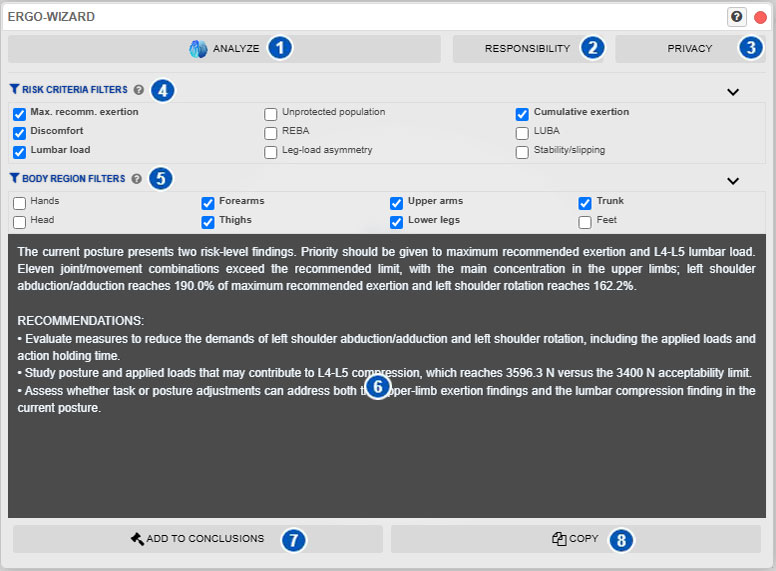
| No. | Control | Function |
|---|---|---|
| 1 | Analyze | Prepares the results included by the filters and requests an AI assessment and recommendations. |
| 2 | Responsibility | Displays the conditions and precautions for using AI-generated results. |
| 3 | Privacy | Explains the data prepared and their handling while the response is generated. |
| 4 | Risk-criteria filter | Selects the result types that Ergo-Wizard will consider. |
| 5 | Body-region filter | Limits joint-related findings to the selected body regions. |
| 6 | Ergo-Wizard response | Displays the generated assessment, main findings, and recommendations. |
| 7 | Send to conclusions | Transfers the generated text to the report conclusions. |
| 8 | Copy | Copies the complete response to the clipboard. |
Prepare the analysis
Before requesting a response:
- Select the appropriate operating mode.
- Verify that the posture, sequence, or lifting tasks are correctly defined.
- Check the activity conditions, repetitions and rest periods, and biomechanical options to be applied.
- Open Ergo-Wizard.
- In Single posture or Multiple postures mode, select the risk criteria and body regions to include.
- Select Analyze, identified by number 1.
In Lifting mode, also review the temporal organization, period durations and order, recovery times, assessment blocks, and determining block or blocks.
Ergo-Wizard uses existing results. If it must prepare additional information for the summary, it does so before sending the request. Progress messages are displayed and Analyze is temporarily disabled.
If the assessment has insufficient results, a sequence analysis is canceled, or results change while the response is being prepared, conclusions are not generated and the corresponding reason is displayed.
Behavior by operating mode
Single posture
In Single posture mode, Ergo-Wizard analyzes only the current posture and its defined conditions. Depending on active filters and available calculations, the summary can include biomechanical exertion, discomfort, REBA, LUBA, lumbar load, support asymmetry, stability, and slipping.
The response identifies the most relevant findings, affected body regions, and the magnitudes supporting the assessment.
Multiple postures
In Multiple postures mode, selecting Analyze requires choosing a scope:
- Current posture: analyzes only the posture currently displayed within the sequence.
- Entire sequence: considers temporal development, exposure, involved criteria, and selected relevant time points.
- Cancel: closes the scope selection without requesting a response.
For an entire-sequence analysis, Ergo-Wizard first stops playback. The generated conclusion records the selected scope for later compatibility checks with the report type.
Lifting
In Lifting mode, Ergo-Wizard interprets available NIOSH results but does not rerun the Revised NIOSH Lifting Equation. Prepared information can include:
- temporal-organization mode and number of periods;
- total lifting, recovery, and elapsed times;
- assessment blocks and grouping decisions based on recovery;
- determining block or blocks, including ties;
- Lifting Index (LI) for a single-task analysis or Composite Lifting Index (CLI) for a multitask analysis;
- task summary and tasks requiring the most attention;
- load weight, frequency, Recommended Weight Limit, and index for priority tasks;
- significant control at the destination and the evaluated endpoint for each task.
The assessment identifies the determining block or blocks and relates them to the overall LI or CLI. Other blocks provide context for activity duration and repetition, but their indices are neither added nor averaged.
If a block accumulates more than eight lifting hours or the sequence’s total elapsed duration—lifting plus recovery—exceeds eight hours, the temporal organization cannot be assessed using the Revised NIOSH Lifting Equation. Ergo-Wizard then does not prepare NIOSH conclusions and displays the reason.
No criterion or body-region filters appear in this mode because the analysis focuses specifically on the NIOSH results for the defined tasks.
After changing tasks, significant control at the destination, temporal organization, periods, or recovery times, select Analyze again to obtain conclusions consistent with the current results.
Conclusions can be transferred to the Lifting report.
Synchronization with Results Advisor filters
Filters 4 and 5 are the same filters used by the Results Advisor; Ergo-Wizard does not keep an independent copy:
- Single posture shares the Single-posture advisor filters;
- Multiple postures shares the Multiple-posture advisor filters.
Changes in either dialog appear in the other. Single-posture and multiple-posture configurations remain independent, so each mode retains its own selection.
The filters determine which results and body regions are included in the response data. Disabled criteria are not subsequently included by inference.
Changing a filter after a response marks the analysis for update and disables Send to conclusions and Copy. Select Analyze again for text consistent with the new selection.
Interpret the response
Response 6 is technical text containing an overall assessment, main findings, and recommendations. Higher-severity risks are prioritized, and proposed measures are tied to the included results.
Ergo-Wizard limits the response to information calculated by Ergoniza Intelligent and the selected scope. It must not include personal data, make medical diagnoses, or invent measurements, tasks, or workstation characteristics absent from the assessment.
It can include scope or limitation notices when the analysis is incomplete or source results contain technical warnings.
Responsibility for use: AI-generated assessments and recommendations support the evaluator. Review them against the actual task, entered data, and applicable methods before making decisions or implementing preventive measures.
Responsibility and privacy
Responsibility, identified by number 2, displays the complete notice about the scope of AI-generated results and the evaluator’s responsibility for reviewing and applying them.
Privacy, identified by number 3, explains that Ergo-Wizard is designed not to collect or require company, worker, or evaluator names or comparable personal data. The request is prepared with the technical information needed to interpret the results and explains the purpose and handling of the information used.
Review the current wording of both notices in the application before using the tool.
Copy the response
Copy, identified by number 8, copies the complete response to the clipboard. It is available only after a valid response is received and while the filters used remain current.
Send text to report conclusions
Send to conclusions, identified by number 7, transfers the response to the Assessment conclusions field described under Introduction and conclusions. This does not generate a report; it adds the text for review with the rest of its content.
If the field is empty, the text is inserted directly. If it already contains information, choose:
- Append: keeps the existing conclusions and adds the new text.
- Replace: removes the previous content and replaces it with the Ergo-Wizard response after confirmation.
- Cancel: leaves the conclusions unchanged.
Transfer is not performed if the resulting text exceeds the conclusions field’s maximum length.
For Multiple postures conclusions, Ergoniza Intelligent records whether they were generated for the current posture or the entire sequence. If the scope does not match the report type, the application displays a warning and lets you cancel to review the text or explicitly continue.