Real-time AI camera capture
The Camera capture dialog detects postures in real time from the image provided by a camera connected to the computer.
Open this dialog with the Camera button on the left sidebar. This function is available only in Multiple postures mode because camera capture provides a time-based stream of postures and makes the biomechanical model reproduce, in real time, the postures detected in the person in front of the camera.
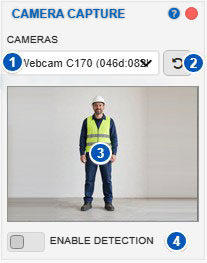
| No. | Area or control | Function |
|---|---|---|
| 1 | Camera selector | Displays detected video devices and selects the camera to use. |
| 2 | Detect cameras again | Refreshes the list of available cameras or video devices. |
| 3 | Camera view | Displays the image provided by the selected camera. |
| 4 | Enable detection | Starts or stops real-time posture detection. |
Purpose of the dialog
The Camera capture dialog uses a camera available to the system to detect postures in real time.
Unlike Image capture, which works with a still image, and Video capture, which processes a previously loaded video file, camera capture works with a live video feed.
When detection is enabled, Ergoniza Intelligent analyzes the camera frames and updates the biomechanical model according to the posture detected in the person visible in the image.
Use this function to:
- check postures in real time;
- directly observe dynamic tasks.
Postures detected with this system are not recorded on the timeline.
Camera selector
Control 1 displays a drop-down list of the video devices detected on the computer.
The list may include, for example:
- webcams connected to the computer;
- cameras built into a laptop;
- mobile-device cameras, if they are available to the system;
- virtual video-capture devices;
- other video sources recognized by the browser or operating system.
Select the camera you want to use for detection.
If the expected camera does not appear, confirm that it is connected, the browser has permission to use it, and another application is not currently using it.
Detect cameras again
Button 2 refreshes the list of available video devices.
Use it when:
- a camera was connected after the dialog was opened;
- the available camera has changed;
- the expected device does not appear in the drop-down list;
- camera permission has been granted to the browser and you want to detect the devices again.
Selecting this button makes the system query the available cameras again and refresh the selector.
Camera view
Area 3 displays the image provided by the selected camera.
Use this view to check whether:
- the correct camera is selected;
- the person is within the frame;
- the body is sufficiently clear;
- lighting is suitable;
- no major occlusions are present;
- the camera orientation is appropriate for the task.
Before enabling detection, adjust the camera and the person’s position to obtain a suitable image.
Enable detection
Control 4, Enable detection, starts or stops real-time posture detection.
When enabled, the system analyzes the camera image and makes the biomechanical model adopt the postures detected in the person within the field of view.
When disabled, detection stops and the model is no longer updated from the camera.
Real-time operation
During real-time capture, the model is updated as the system detects the person’s body posture.
This lets you immediately observe how the detected posture is transferred to the biomechanical model. Responsiveness may depend on:
- camera quality;
- lighting;
- movement speed;
- the person’s distance from the camera;
- limb visibility;
- detection-system settings;
- the computer’s processing capacity.
Detection accuracy may decrease if movement is very fast, lighting is poor, or occlusions are present.
Artificial intelligence used
Camera capture uses Fast AI.
Processing therefore runs locally on the user’s computer, and information captured by the camera is not sent to external servers for detection.
The main characteristics of this mode are:
- local processing;
- fast response;
- operation suitable for real-time capture;
- dependence on image quality and computer performance;
- potentially lower accuracy than Accurate AI processing on the server.
For more information about the difference between Fast and Accurate AI, see:
Relationship to Intelligent options
Camera capture uses the parameters configured in Intelligent options.
These parameters adjust local Fast AI detection. They may affect, among other factors:
- processing accuracy;
- minimum detection confidence;
- minimum tracking reliability;
- minimum visibility required to accept body landmarks;
- detection smoothing;
- estimated camera height;
- contact tolerance;
- automatic foot-support adjustment.
These settings are particularly relevant to real-time capture. For example, smoothing can reduce model oscillation between frames, while the reliability and visibility thresholds can make the system more or less selective when accepting detected body landmarks.
If model movements are unstable, body parts are frequently lost, or the model adopts inconsistent postures, review Intelligent options.
Body parts not detected correctly
When the system cannot correctly detect a body part’s posture, the corresponding part of the model may be highlighted in red.
This indicates that the segment’s posture was not obtained with sufficient confidence. Interpret the result cautiously and check whether the problem is caused by:
- an occlusion;
- insufficient lighting;
- poor camera placement;
- the person being outside the frame;
- movement that is too fast;
- clothing or a background that hinders detection;
- insufficient visibility of the body part.
Recommendations for successful capture
To improve camera detection:
- position the camera so that the person’s complete body is visible;
- prevent body parts from falling outside the frame;
- maintain sufficient, even lighting;
- avoid strong shadows;
- do not position the camera facing a window or intense light source;
- reduce occlusions caused by objects, loads, or furniture;
- ensure that the person occupies a substantial portion of the image;
- use a viewpoint that shows the trunk, upper arms, and lower limbs;
- avoid excessively rapid movements when stable detection is required.
If the task involves handling loads, position the camera so that the load obscures the hands, upper arms, and trunk as little as possible.
Relationship to other capture methods
Ergoniza Intelligent provides several ways to obtain postures with artificial intelligence:
- Image capture, to detect a posture from a still image.
- Video capture, to detect a posture sequence from a video file.
- Camera capture, to detect postures in real time from a connected camera.
The appropriate choice depends on the type of task and the material available.
Camera capture is appropriate when immediate interaction is required and a correctly positioned camera is available. Video capture may be more appropriate when analyzing a complete recording. Image capture is useful when only one particular posture is required.
Recommendations for use
To use this dialog correctly:
- Open the dialog with the Camera button on the left sidebar.
- Select the appropriate video device from the drop-down list.
- If the camera does not appear, select the refresh button.
- Confirm in the camera view that the person is correctly framed.
- Adjust lighting, distance, and viewpoint if necessary.
- Enable detection.
- Review the model’s behavior in real time.
Related sections of the User manual
For more information about this dialog, see:
Related Technical foundations
For a more complete methodological explanation of automatic posture capture and camera-use conditions, see the Technical foundations, particularly:
- Artificial intelligence for posture detection
- Image- and video-capture methods
- Two artificial-intelligence methods in Ergoniza Intelligent
- Capture best practices
- AI versus MOCAP: scope, limitations, and user validation
These sections explain the general criteria for automatic capture, the conditions that affect accuracy, and the role of Fast AI in local detection.