Model parameter settings
The Model settings panel lets you define the general characteristics of the biomechanical model used in the assessment. These parameters affect how the system represents the body, calculates certain biomechanical quantities, and applies some constraints when you manipulate the posture.
Before running an analysis, make sure these values reasonably represent the person being assessed. Incorrect anthropometric or biomechanical settings can alter the results.
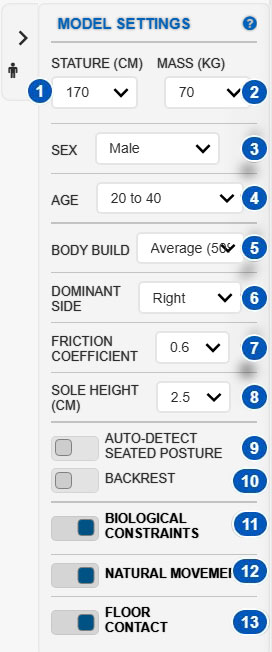
| No. | Parameter | Function |
|---|---|---|
| 1 | Stature | Changes the model’s stature, expressed in centimeters. |
| 2 | Mass | Changes the model’s body mass, expressed in kilograms. |
| 3 | Sex | Specifies the sex of the person represented by the model. |
| 4 | Age | Selects the age range of the person being assessed. |
| 5 | Body build | Changes the model’s body build, from very slight to very robust. |
| 6 | Dominant side | Specifies whether the person is right- or left-handed. This information may affect some biomechanical calculations. |
| 7 | Friction coefficient | Defines the coefficient of friction between the footwear and the floor. It may be used to detect slipping or tipping conditions. |
| 8 | Sole height | Sets the height of the footwear sole in centimeters. This value may affect certain biomechanical calculations. |
| 9 | Auto-detect seated posture | Enables automatic detection of seated postures using heuristics. |
| 10 | Backrest | Indicates that the trunk is supported by a backrest. When the model is seated in a chair, this option removes the torso flexion component used in the biomechanical calculation. |
| 11 | Biological constraints | Constrains model movements to the natural angular ranges of the joints. |
| 12 | Natural movement | Enables inverse kinematics so that the model moves more naturally when you manipulate its segments. |
| 13 | Floor contact | Automatically adjusts the model’s height to maintain contact with the floor. |
Basic anthropometric parameters
The Stature and Mass controls adapt the model to the general characteristics of the person being assessed.
Control 1 changes the model’s stature, expressed in centimeters. This value affects the body dimensions used to represent the model and may influence calculations that depend on body geometry.
Control 2 changes the body mass, expressed in kilograms. This parameter is relevant to biomechanical analyses because body mass contributes to estimates of loads, exertions, and mechanical conditions.
Whenever possible, enter values close to those of the person being assessed. If you are working with a representative person or a generic case, use values consistent with the profile you want to analyze.
Sex, age, and body build
Control 3 selects the sex of the person represented by the model. This selection may be used in certain internal calculations or criteria.
Control 4 selects the age range. This parameter provides a general characterization of the person when the analysis needs to account for differences associated with age group.
Control 5 adjusts the model’s body build. Body build can range from very slight to very robust. This parameter represents general differences in physical build that may affect biomechanical estimates.
These parameters should not be understood as a detailed clinical description of the person. They provide a general model configuration that better approximates the case being assessed.
Dominant side
Control 6 specifies the person’s dominant side by selecting right or left.
This information may affect some biomechanical calculations or the interpretation of certain actions. For example, in asymmetrical tasks, the dominant side may be relevant to a more accurate characterization of the activity.
Select the dominant side that corresponds to the person being assessed. If this information is unavailable, use the value that best represents the general case under analysis.
Friction and sole height
Control 7 defines the coefficient of friction between the footwear and the floor. This value may influence calculations related to stability, slipping, or tipping.
A low coefficient of friction represents a more slippery interaction between the footwear and the floor. A higher coefficient represents greater traction. Use a value consistent with the surface, footwear, and working conditions.
Control 8 sets the footwear sole height, expressed in centimeters. This parameter may also affect some biomechanical calculations, especially when the support height changes the body’s effective position relative to the floor.
Review these two parameters when the assessment concerns stability, support, slipping risk, floor contact, or tasks in which footwear and surface conditions may be relevant.
Seated-posture detection
Control 9 enables automatic seated-posture detection.
When this option is enabled, the system uses heuristics to identify whether the model is in a seated posture. This detection can make the analysis easier to configure for tasks performed while seated.
Use this option with some caution. Because the detection is heuristic, it can produce false positives under certain conditions. In other words, the system may incorrectly interpret the model as seated when the actual posture is not seated.
After enabling this option, visually review the model and confirm that the system’s interpretation is consistent with the task being assessed.
Backrest in a seated posture
Control 10 indicates that the person’s trunk is supported by a backrest.
This option has an effect only when Ergoniza Intelligent identifies that the model is seated in a chair. In that case, the backrest is considered to offset the flexion component of the torso moment.
The option does not remove:
- trunk lateral flexion;
- trunk rotation;
- the extension moment when the trunk tends to move backward;
- exertions caused by external loads or other parts of the body.
The backrest is not modeled as a support point with its own reaction force and does not directly redistribute the reactions calculated at the feet, knees, thighs, or pelvis.
The option has no effect when the model is not seated in a chair, for example when sitting on the floor. Enable it only when the trunk has actual posterior support.
Biological constraints
Control 11 enables the model’s biological constraints.
When this option is enabled, the system limits model movements to the natural angular ranges of the joints. This helps prevent implausible or anatomically impossible postures during manual manipulation of the model.
This option is particularly useful when adjusting the posture with the mouse because it reduces the risk of accidentally placing a joint outside a reasonable range.
If you need to represent an exceptional posture or review a specific situation that these constraints prevent, you may need to disable this option temporarily. In that case, review the final posture particularly carefully before using it in an analysis.
Natural movement using inverse kinematics
Control 12 enables the model’s natural movement using inverse kinematics.
When this option is enabled, manipulating one segment can automatically adjust other related segments. For example, when you change the position of a hand, the system can automatically calculate suitable forearm and upper-arm positions to maintain more natural movement.
This option makes posture editing easier, especially when manipulating the hands, upper arms, lower limbs, or feet. Instead of changing each joint separately, the system attempts to maintain a coherent movement chain.
If you want to control a specific joint manually without the system adjusting other segments, you can temporarily disable this option.
Floor contact
Control 13 enables automatic floor contact.
When this option is enabled, the model adjusts its height to remain in contact with the floor during manipulation. This helps maintain more consistent postures when changing lower limbs, supports, or global body positions.
This option is particularly relevant for standing postures, single-leg support, leg flexion, lifting, or situations in which floor contact affects the interpretation of the posture.
If the model appears to float, sink, or lose support during manipulation, enable this option and review the complete posture again.
Recommendations for use
Before starting an assessment, review the model parameters in this order:
- Set stature and body mass.
- Select sex, age range, and body build.
- Specify the dominant side.
- Adjust the coefficient of friction and sole height if they are relevant to the task.
- Enable seated-posture detection only when working with seated postures.
- Indicate whether a backrest is present, when applicable.
- Enable or disable biological constraints, natural movement, and floor contact according to the type of manipulation you intend to perform.
After changing these parameters, visually review the model and confirm that the configuration adequately represents the person and the work situation being assessed.