AI video capture
The Video capture dialog loads a video and uses artificial intelligence to automatically detect a posture sequence from its frames.
Open this dialog with the Video button on the left sidebar. This function is available only in Multiple postures mode because video detection generates a time-based posture sequence rather than a single isolated posture.
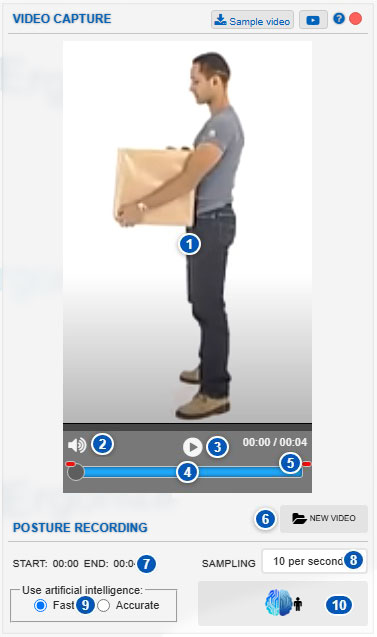
| No. | Area or control | Function |
|---|---|---|
| 1 | Video viewer | Displays the loaded video for visual review of the task before processing. |
| 2 | Volume | Enables, disables, or adjusts video sound. |
| 3 | Playback | Plays or pauses the video. |
| 4 | Video timeline | Moves through the video to review different times. |
| 5 | Trim sliders | Define the video segment to process. |
| 6 | New video | Selects and loads a new video file. |
| 7 | Start and end | Displays the start and end times of the video segment selected for processing. |
| 8 | Sampling | Defines how many postures are detected per second when using Fast AI. |
| 9 | Artificial-intelligence type | Selects Fast AI or Accurate AI. |
| 10 | Process video | Starts AI processing of the video to detect postures. |
Purpose of the dialog
Use the Video capture dialog to automatically obtain a posture sequence from a video.
Unlike Image capture, which detects one posture from a still image, video capture generates multiple postures distributed over time. The tool therefore integrates with the Timeline and the analyses available in Multiple postures mode.
Video posture detection can be especially useful for analyzing:
- repetitive tasks;
- handling cycles;
- load lifting;
- displacement or posture changes;
- activities in which posture changes over time;
- sequences that will subsequently undergo time-based analysis.
Video viewer
Area 1 displays the loaded video.
Use this viewer to confirm that the correct file is selected and visually review the task before processing. It is useful for locating the relevant video segment and excluding parts that provide no useful information for the analysis.
Before processing the video, check that:
- the person is clearly visible;
- the task is sufficiently well lit;
- no major occlusions are present;
- the body is displayed at a suitable size;
- the camera is positioned appropriately;
- the selected segment contains the action to be analyzed.
Video quality directly affects automatic-detection quality.
Volume and playback controls
Controls 2 and 3 provide basic video playback.
Control 2 adjusts volume. It enables, disables, or changes the video sound. Sound does not affect posture detection, but it may be useful when reviewing the original video.
Control 3 plays or pauses the video, making it easier to review the task before selecting the segment to process.
Video timeline
Area 4 is the video playback timeline.
Use it to move through the video and review different times in the task. It can help locate the start and end of the segment to analyze.
Do not confuse the video timeline with the activity Timeline in Ergoniza Intelligent. The first belongs to the original video; the second represents the resulting posture sequence within the system.
Trimming the video segment
The red sliders numbered 5 define which part of the video will be processed.
The system processes the segment between the initial and final red sliders. You therefore do not need to process the complete file when only a particular section is relevant.
This option lets you:
- reduce processing time;
- avoid detecting postures in irrelevant segments;
- exclude inactive seconds at the beginning or end;
- focus the analysis on a particular phase of the task;
- avoid including movements unrelated to the cycle being assessed.
Before starting detection, confirm that the selected segment includes the complete action you want to analyze.
New video
Button 6, New video, selects and loads a new video file.
Opening a new video replaces the previous video in the dialog. After loading it, review the selected segment, the artificial-intelligence type, and the sampling rate when applicable.
Start and end of the selected segment
Area 7 displays the Start and End times of the video segment selected for processing.
These values change with the positions of the red trim sliders. Use them to verify the exact time interval that will be sent for detection.
To analyze only part of the video, adjust the trim sliders and check these values before starting processing.
Sampling
Selector 8 defines the sampling rate when using Fast AI.
The sampling rate indicates how many postures will be detected per second of video. For example, 10 per second means that the system will attempt to detect 10 postures for every second in the selected segment.
This parameter directly affects the number of generated postures:
- a higher sampling rate produces more postures and a more detailed time-based representation;
- a lower sampling rate produces fewer postures and reduces processing time;
- an excessively low rate may miss relevant posture changes;
- an excessively high rate may generate more information than necessary.
The sampling selector appears only when Fast AI is used. When Accurate AI is selected, the system hides this control because processing uses the Accurate mode’s own criteria.
Artificial-intelligence type
Area 9 provides two detection modes:
- Fast;
- Accurate.
Both modes detect postures from the video, but they differ in where processing takes place, the time required, and expected accuracy.
Fast AI
The Fast option processes the video locally on the user’s computer.
Its main characteristics are:
- shorter processing time;
- the video does not need to be sent to an external server;
- the sampling rate can be adjusted;
- it depends on the parameters configured in Intelligent options;
- accuracy may be lower than with the Accurate option.
This option is appropriate when video quality is good, the person is clearly visible, and a posture sequence is needed quickly.
It is also useful during preliminary work when you want an initial detection that can later be reviewed and corrected if necessary.
Relationship to Intelligent options
Detection with Fast AI uses the parameters configured in Intelligent options.
These parameters adjust automatic capture when processing runs locally. They may affect, among other factors:
- processing accuracy;
- minimum detection confidence;
- minimum tracking reliability;
- minimum visibility required to accept body landmarks;
- detection smoothing;
- estimated camera height;
- contact tolerance;
- automatic foot-support adjustment.
These controls can affect detection results. For example, higher Min. reliability may reject uncertain body landmarks, while more permissive settings may accept more landmarks at a greater risk of errors.
Smoothing can be especially relevant to video because it helps reduce oscillations or abrupt variations between frames. However, excessive smoothing may obscure rapid posture changes.
If Fast AI results are unsuitable, review Intelligent options before repeating detection.
Accurate AI
The Accurate option uses higher-accuracy processing but requires the necessary information to be sent to the Ergonautas server to complete detection.
Its main characteristics are:
- potentially higher accuracy;
- longer processing time;
- the local sampling selector is not displayed;
- a connection to the server is required;
- it may be more appropriate for complex videos or when detection quality is the priority.
You must also visually review Accurate AI results. No automatic process removes the need to confirm that the detected postures accurately represent the actual task.
Process video
Button 10 starts processing the loaded video.
Before selecting it, confirm that:
- the correct video is selected;
- the segment between the red sliders contains the task to be analyzed;
- the selected artificial-intelligence mode is appropriate;
- the sampling rate is suitable when using Fast AI;
- the Intelligent settings are suitable when using Fast mode.
After processing, the system generates a posture sequence that you can review on the timeline.
Detection result
Video capture produces a posture sequence distributed over time.
Use these postures as the basis for:
- playing the activity;
- reviewing model movement;
- calculating biomechanical exertions;
- analyzing postural discomfort;
- assessing postural load;
- calculating lumbar compression;
- generating time-based charts;
- analyzing cumulative exertion load.
After processing, review the resulting sequence on the Timeline and confirm that the detected postures are consistent with the original video.
Reviewing and correcting the sequence
Treat automatic detection as an aid for capturing postures, not as a guarantee that every posture is correct.
After processing the video, review whether:
- the model’s overall movement is consistent;
- there are jumps or errors between postures;
- any body part was detected incorrectly;
- the hands, upper arms, lower limbs, and trunk are represented correctly;
- the loads or supports correspond to the actual task;
- the processed segment contains only the activity to be analyzed.
If a posture is incorrect, you can modify it manually. See:
Selecting a suitable video
To improve automatic detection, use videos that meet these conditions:
- the complete person, or the body parts needed for the analysis, are visible;
- lighting is sufficient and even;
- strong shadows are avoided;
- objects, machines, tables, or loads do not obscure the body;
- the camera is positioned at a suitable height;
- its orientation provides a clear view of the trunk, upper arms, and lower limbs;
- the person is neither too far away nor too close;
- resolution is sufficient without being unnecessarily high.
Occlusions are one of the main causes of automatic-detection errors. If a load obscures the hands or upper arms, or one body part is behind another, the system may estimate incorrect positions.
Relationship to the timeline
Video capture is directly related to the Timeline.
After the video is processed, detected postures are organized as keyframes or postures within a time-based sequence. From the timeline, you can:
- play the activity;
- move between postures;
- review interpolation;
- modify postures;
- move keyframes;
- select intervals;
- delete postures;
- generate time-based charts.
Reviewing the timeline is therefore an essential step after video capture.
Relationship to charts and time-based analyses
Video capture generates a time-based activity. It can therefore provide the basis for time-dependent analyses such as:
If you modify postures after capture, you may need to update the results and charts.
Recommendations for use
To use this dialog correctly:
- Load a video with New video.
- Review the video in the viewer.
- Use the red sliders to define the segment to process.
- Check the start and end times.
- Select Fast or Accurate AI.
- If using Fast AI, adjust sampling and review Intelligent options.
- Process the video.
- Review the resulting posture sequence on the timeline.
- Manually correct any inaccurate postures.
- Update analyses and charts if you make changes.
Related sections of the User manual
For more information about this dialog, see:
- Image capture
- Intelligent options
- Timeline
- Manual model-posture manipulation
- Charts
- Cumulative exertion load
- Activity repetitions
- Exertion
- Postural load
Related Technical foundations
For a more complete methodological explanation of automatic posture capture and video-use conditions, see the Technical foundations, particularly:
- Artificial intelligence for posture detection
- Image- and video-capture methods
- Two artificial-intelligence methods in Ergoniza Intelligent
- Capture best practices
- AI versus MOCAP: scope, limitations, and user validation
- Conceptual differences between single- and multiple-posture analysis
These sections explain the conditions that affect automatic-detection accuracy, the differences between the artificial-intelligence modes, and the role of video in multiple-posture analysis.